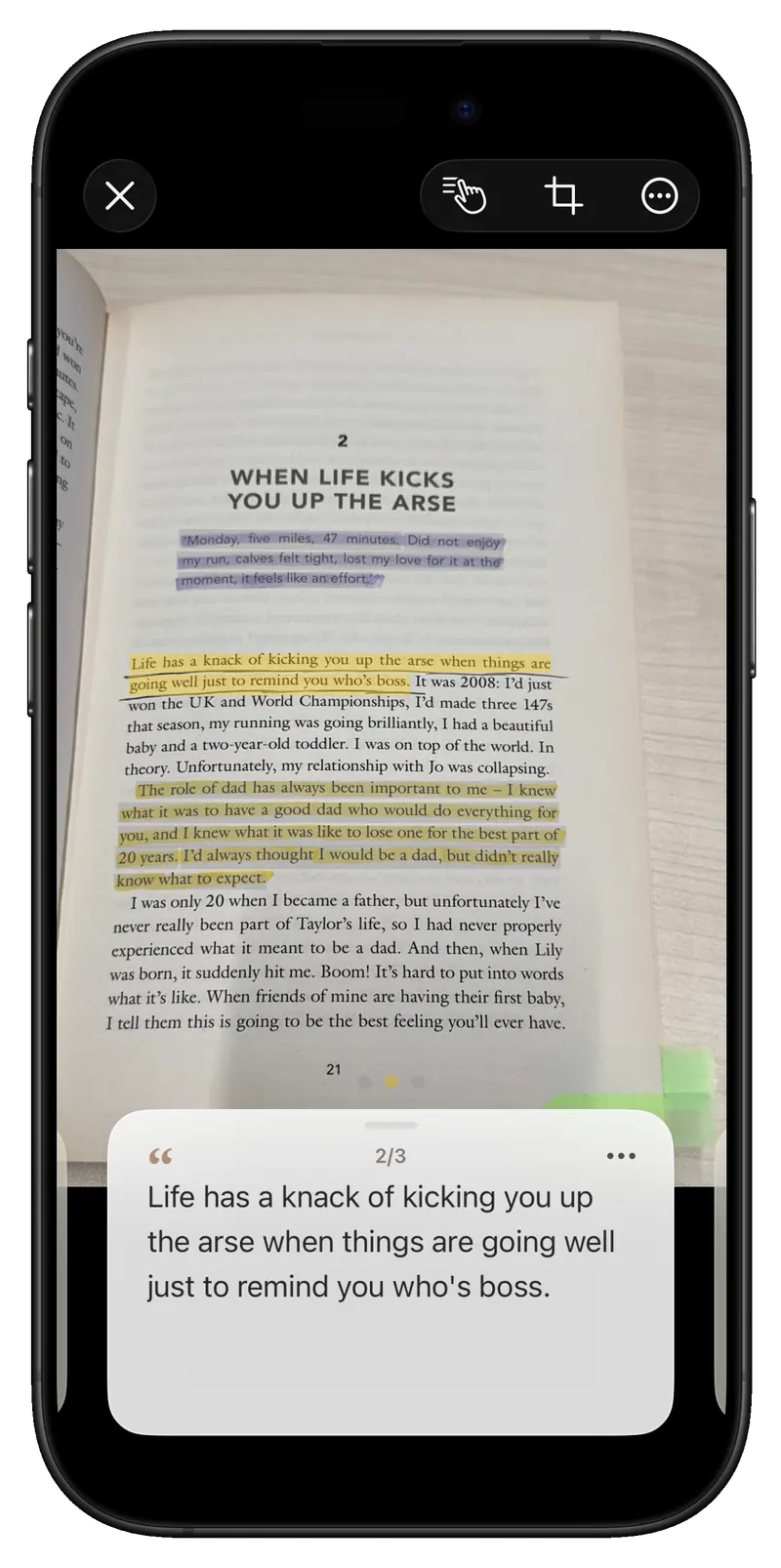
Read and mark your paper book as usual. When you want to keep a line, photograph the page with Inkive, check the recognized text, and save it with its book. This guide follows that process and answers common questions about recognition, review, and export.
Keep underlining or highlighting on paper, then photograph the page in Inkive. Capture a single page or work through several. Automatic capture waits for a steady view; batch capture prompts page turns and checks for duplicates.
02 / Review
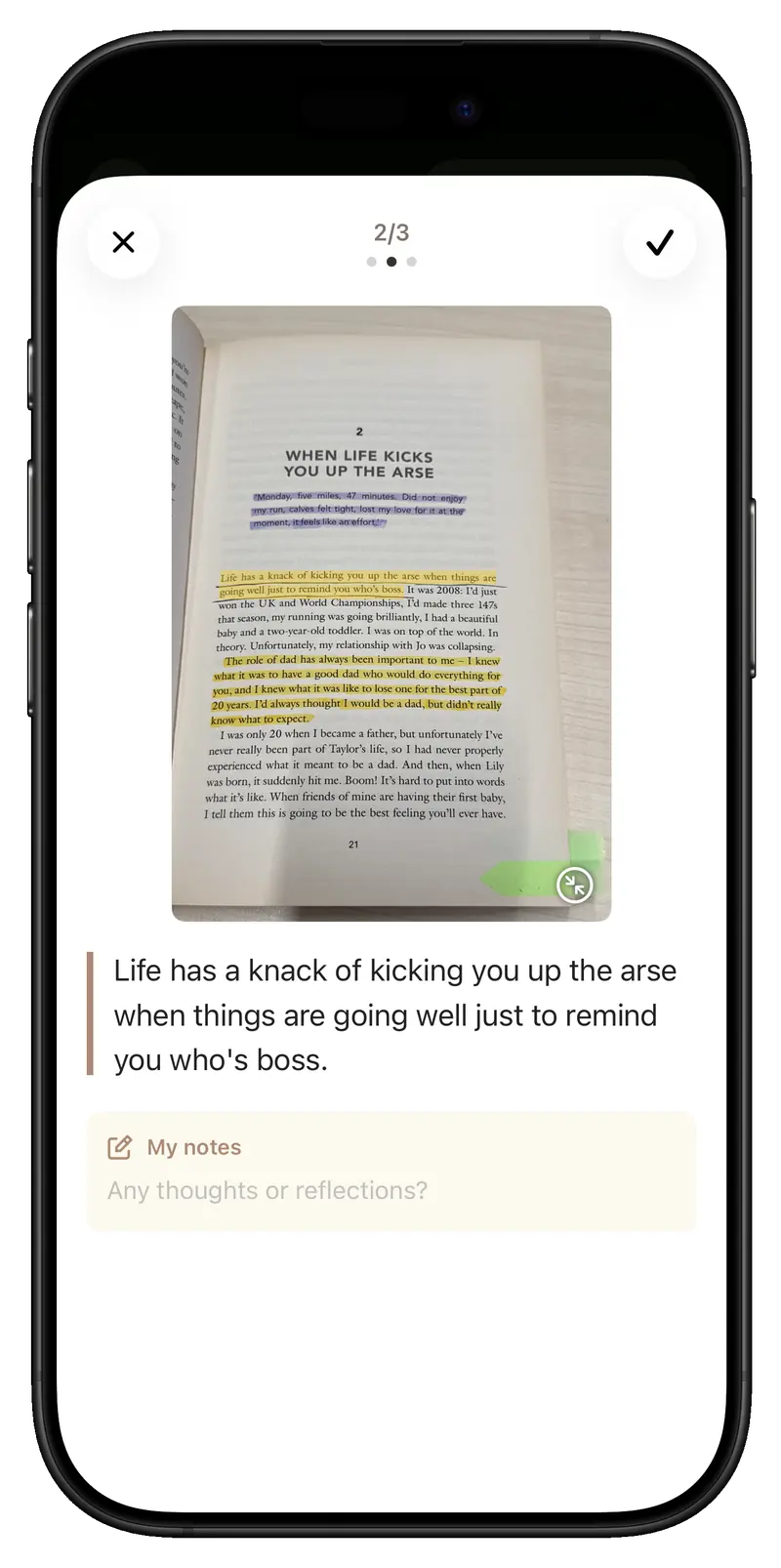
Check the words against the page
Inkive recognizes marks and text on your device. Compare each result with the source page, correct the text, and add a note. You can select a missed sentence manually and adjust the page boundary or rotation.
03 / Organize and revisit
Keep it with the book
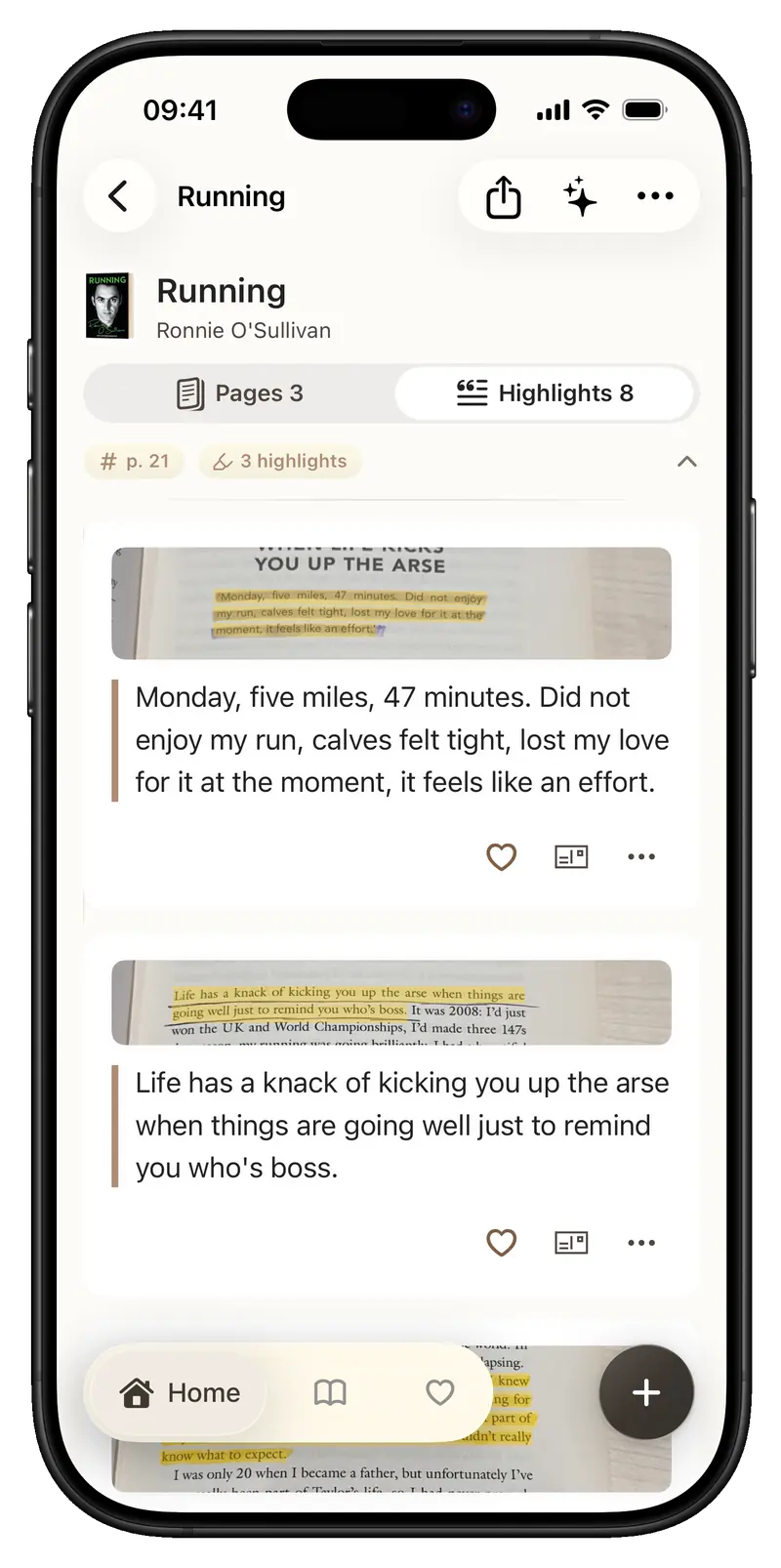
Pages and highlights are organized by book. Search, filter, and favorite what you saved. Start a Random Walk through one book, or revisit passages in Daily Review and Home Screen widgets.
04 / Export and back up
Take your notes further
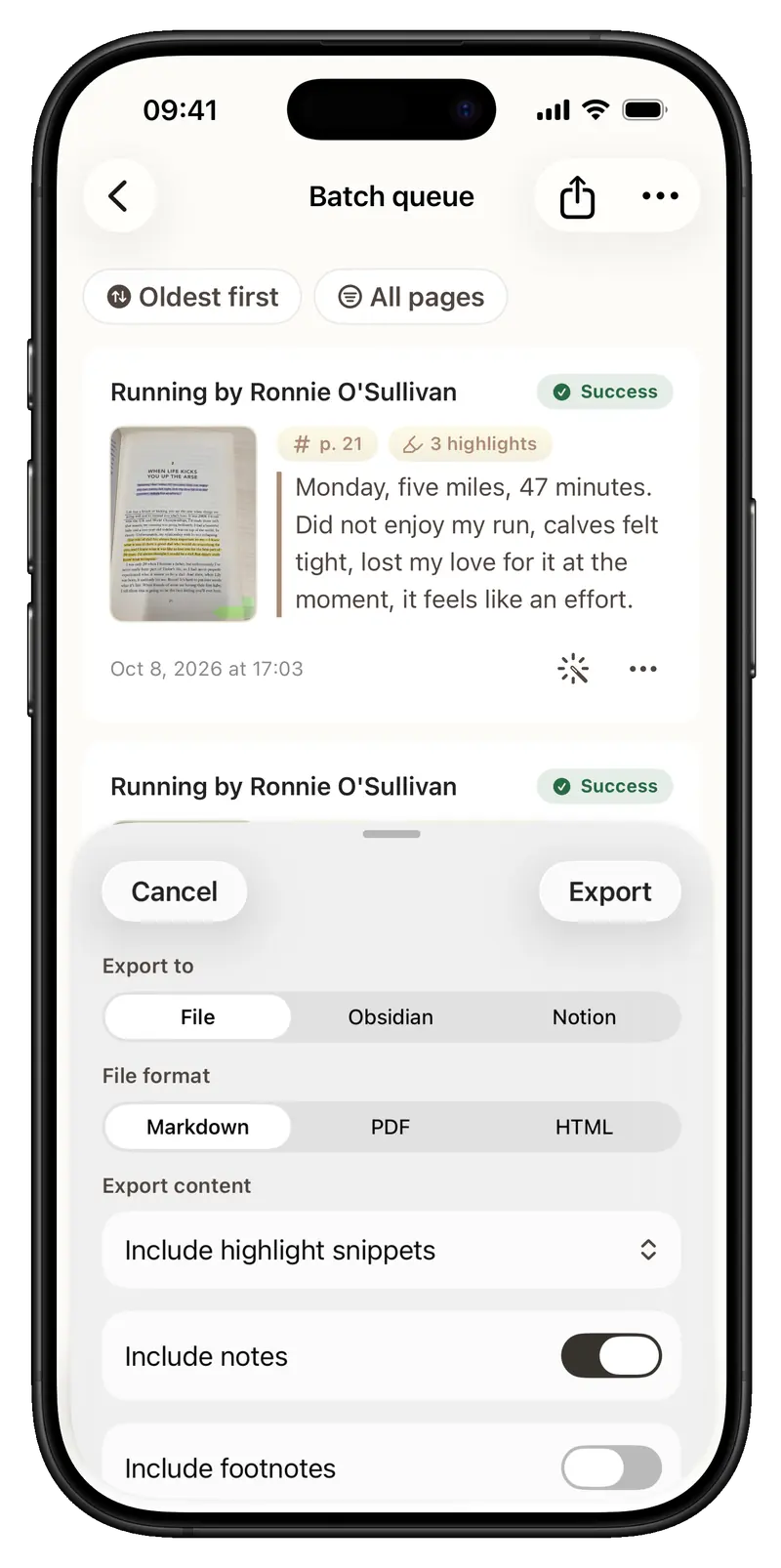
Export highlights as Markdown, HTML, or PDF, write to Obsidian, or export to Notion. Outside services need setup and are used when you initiate a send. You can also create and restore an encrypted backup.
FAQ
Frequently asked questions
Find answers about capture, organization, revisiting, and taking your notes elsewhere.
Capture and recognition
Can I capture several pages in a row?
Yes. Batch capture prompts page turns and checks for duplicate pages. You can also capture a single page. Automatic capture waits for a steady view before taking a photo.
What if a marked sentence was missed?
Check the result against the source page in Review. You can select a missed sentence manually and edit recognized text. If the page boundary or orientation is wrong, correct it and run recognition again if needed.
Does page recognition need internet access?
Marks and text on the page are recognized on your device. Book lookup, purchases, and sends that you initiate to outside services require a connection.
Library and revisiting
What if I can't find my book?
Scan its ISBN or search for book information. If lookup fails, enter the book details manually and keep its pages and highlights together.
How do I find a highlight later?
Open its book in the Library and switch between pages and highlights. You can also search, filter pages, or find passages you added to Favorites.
What appears in Daily Review?
Choose the books, favorites, and tags included in daily reminders. Daily Review and Home Screen widgets bring saved passages back into view; what appears depends on the scope you set.
Export and backup
Where can I export highlights?
Export as Markdown, HTML, or PDF, write to Obsidian, or export to Notion. Some destinations need to be connected in Settings first. Sends to outside services are initiated by you.
Can I share a highlight as an image?
Yes. Share cards offer templates, fonts, image modes, and content options. Choose whether to show the highlighted source excerpt, then save or share the card.
How can I restore my library later?
Create an encrypted backup in Inkive and restore it when needed. The backup includes book covers. Keep the backup file somewhere you can find it again.